Hotseat

What Hotseat does, one thing at a time

Seven things. For each: what you do, what happens, what it needs, and where it stops.

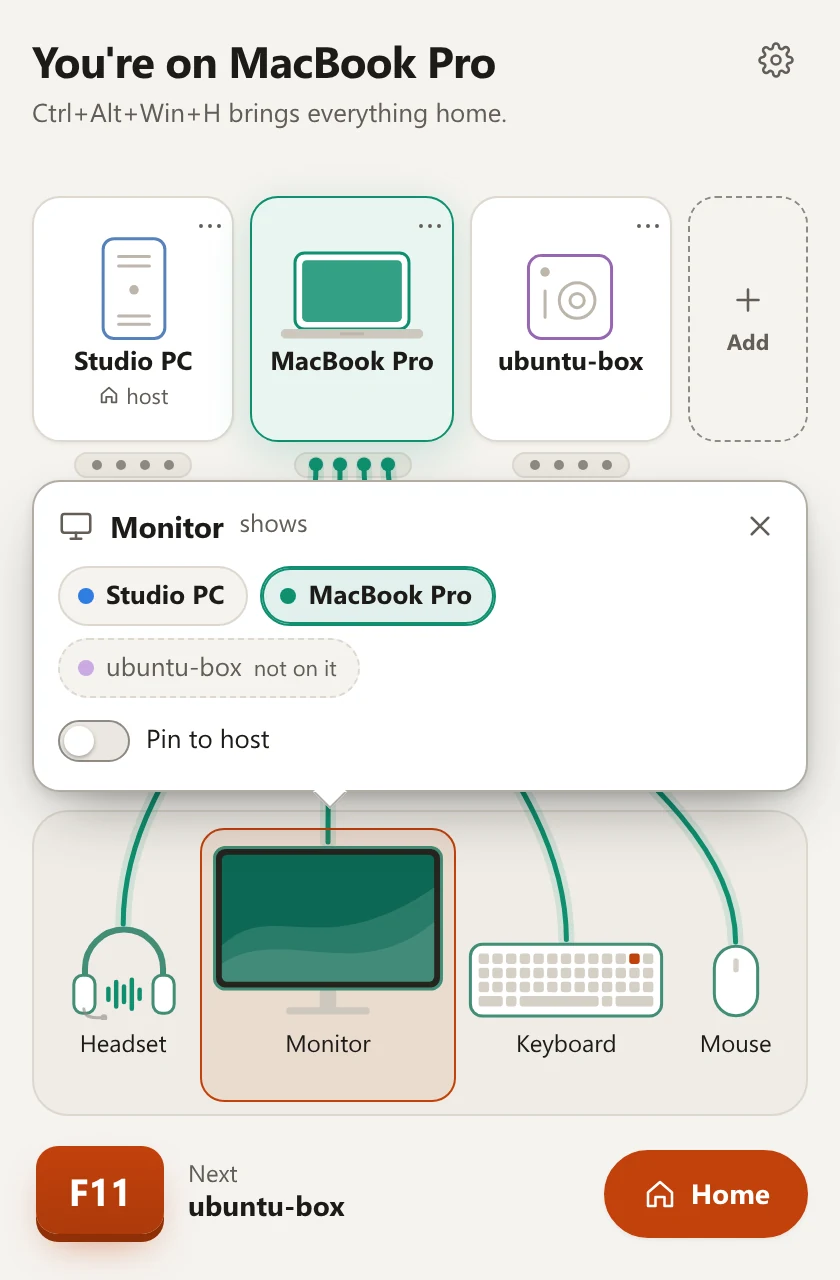
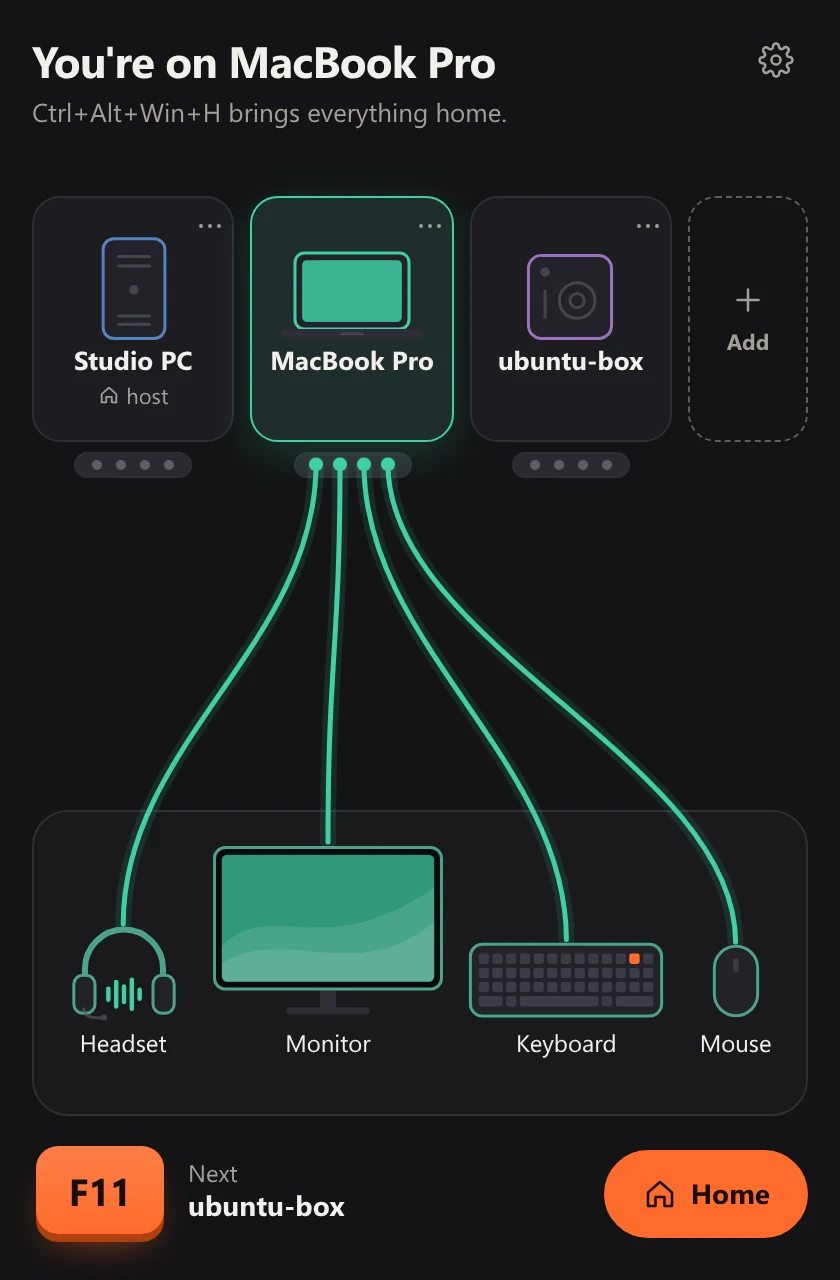
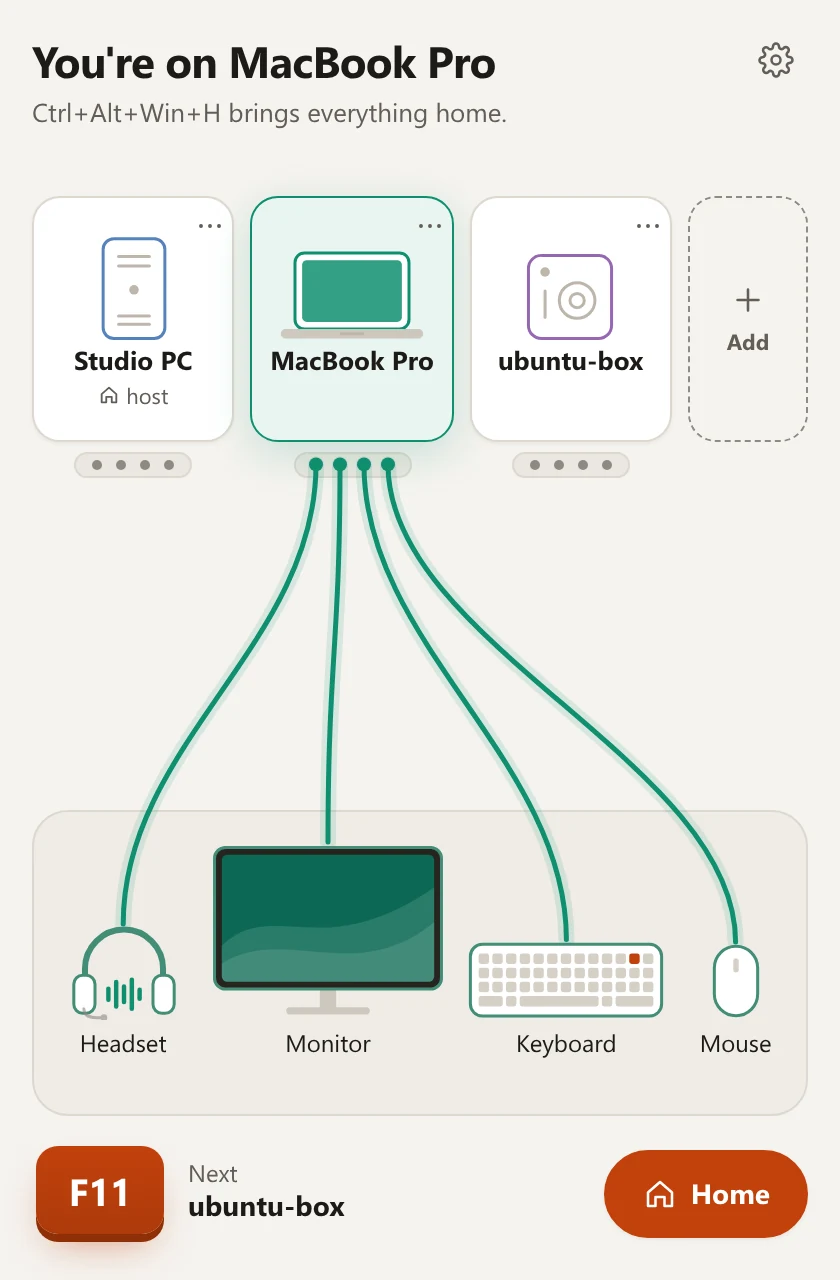
The Hotseat window. Title: You're on MacBook Pro. Three computers on top: Studio PC, marked host, MacBook Pro, lit green, and ubuntu-box. Green cables run from the headset, monitor, keyboard and mouse to MacBook Pro. Below: the F11 key, next ubuntu-box, and a Home button.The Hotseat window. Title: You're on MacBook Pro. Three computers on top: Studio PC, marked host, MacBook Pro, lit green, and ubuntu-box. Green cables run from the headset, monitor, keyboard and mouse to MacBook Pro. Below: the F11 key, next ubuntu-box, and a Home button.
The Hotseat window after one press of F11: every cable now runs to the MacBook Pro.

1 of 7

Keyboard and mouse, by one key

Your keyboard and mouse stay plugged into one computer, the host. One key sends what you type and where you point to the next computer, and the same key takes you on or back.

You do
Press F11; on an Apple keyboard, Fn+F11. Or click a computer in the Hotseat window. Another key can be chosen in Settings, Shortcuts.
What happens
The keyboard and mouse move when you let the key go, and F11 itself is not typed anywhere. With two computers the key takes you there and back; with three it goes round. Home brings everything back to the host: Ctrl+Alt+Win+H, with Command on a Mac or Super on Ubuntu in place of Win.
It needs
Hotseat running on each computer, and the computers paired on the same local network. Windows asks once, as it installs, to let it through the firewall; macOS asks for Accessibility and Local Network; Ubuntu asks for your password once, to set up its input service.
Limits
  • While Hotseat runs, F11 is its key: a browser no longer goes full screen with it. You can pick another.
  • A computer that is asleep or switched off is passed by.
  • If the computer you are on stops answering, the keyboard and mouse come home by themselves.
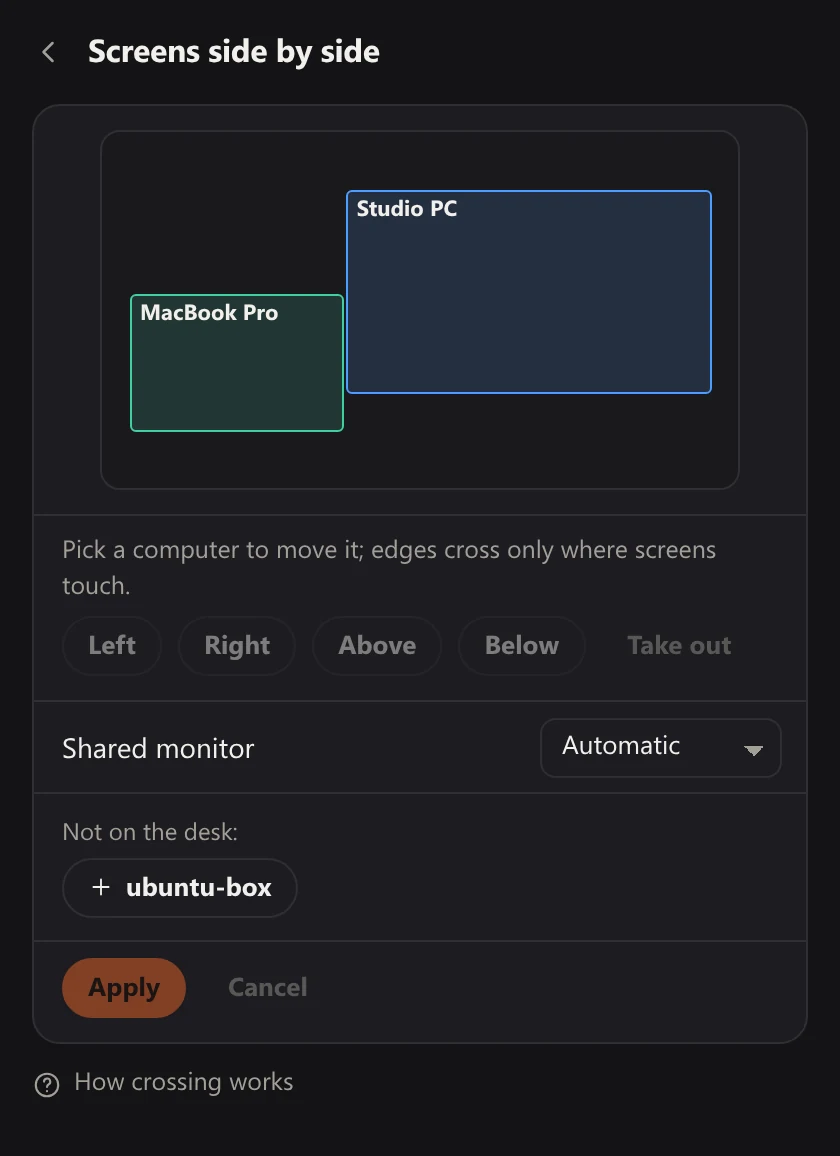
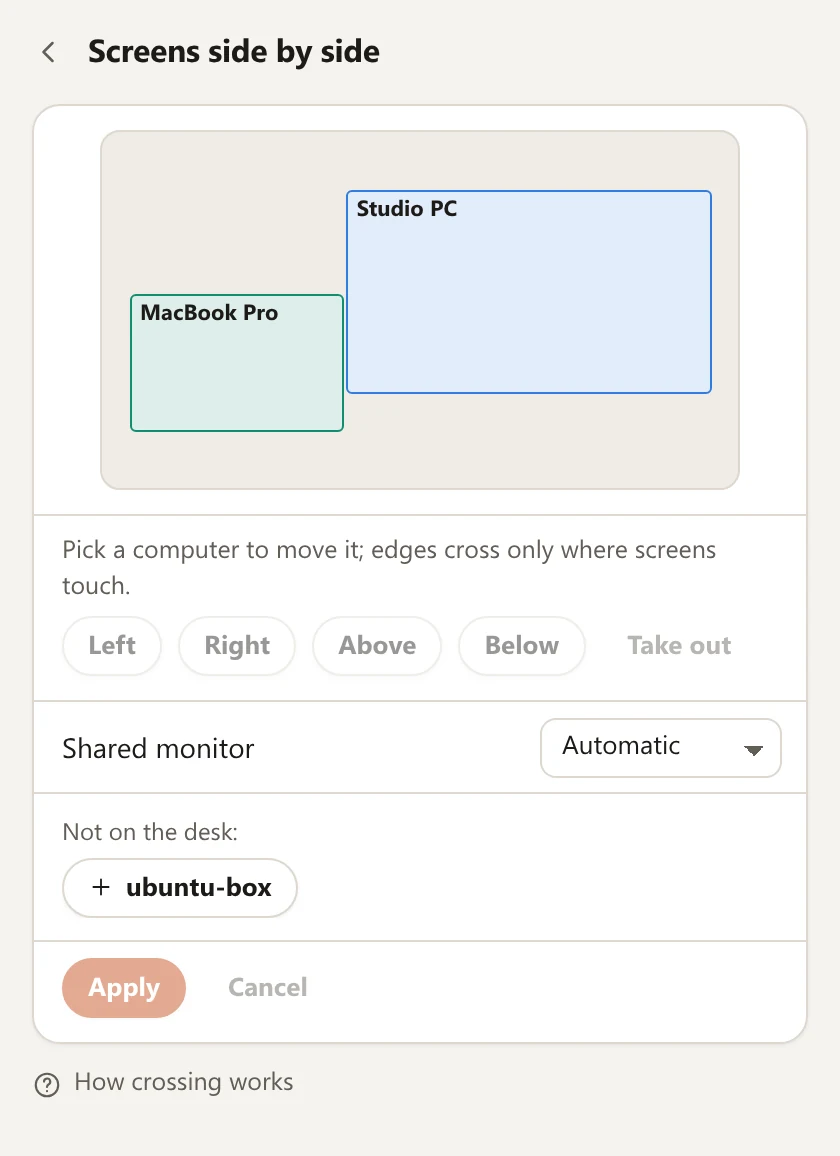
Hotseat settings, Screens side by side. A plan of two screens: MacBook Pro, smaller, touching the left edge of Studio PC. Below it the buttons Left, Right, Above, Below and Take out, a choice for the shared monitor, and ubuntu-box listed as not on the desk.Hotseat settings, Screens side by side. A plan of two screens: MacBook Pro, smaller, touching the left edge of Studio PC. Below it the buttons Left, Right, Above, Below and Take out, a choice for the shared monitor, and ubuntu-box listed as not on the desk.
Screens side by side: the MacBook Pro's screen stands to the left of the Studio PC's, so the pointer crosses at that edge.

2 of 7

Or the edge of the screen

A computer with a screen of its own, a laptop beside the monitor for example, needs no key at all. Push the pointer off one screen and it comes out on the other.

You do
In Settings, Screens side by side, put each computer's screen where it stands on your desk. Then push the pointer past the edge where two screens touch.
What happens
The pointer comes out on the other screen at the same height, and the keyboard goes with it. Push back across the same edge to return.
It needs
A push, not a brush: the pointer that reaches an edge by chance stops there. And the keyboard and mouse plugged into a Windows PC or a Mac.
Limits
  • It does not start from Ubuntu yet: when the keyboard and mouse are plugged into an Ubuntu computer, use the key. Crossing to an Ubuntu computer works.
  • Nothing crosses while a key or a mouse button is held, so a window dragged to the edge stays where it is.
  • Nothing crosses at the corners, so the system's hot corners keep working.
  • Crossing to a computer you see only on the shared monitor switches the monitor too, and asks for a longer push.
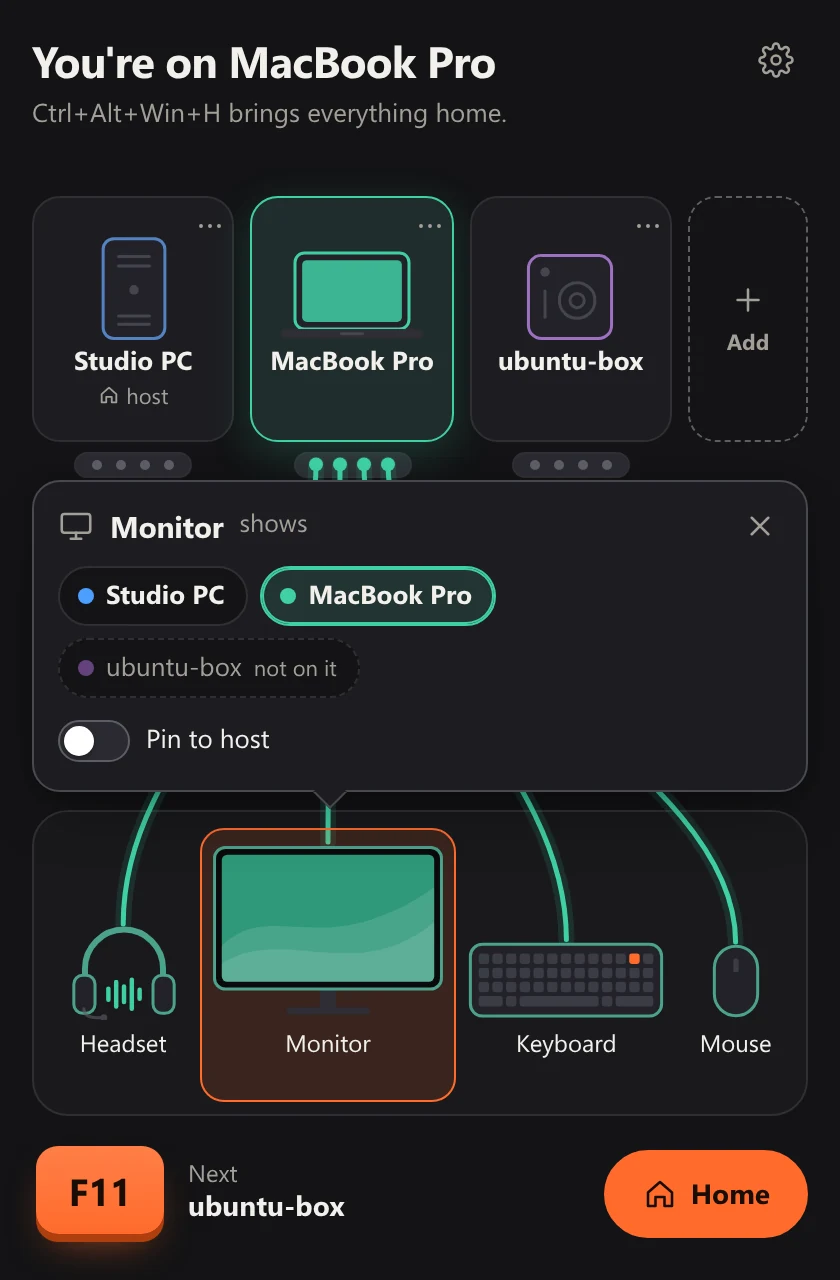
The Hotseat window with the monitor's card open: Monitor shows MacBook Pro; Studio PC and MacBook Pro can be chosen, ubuntu-box is not on it; a switch, Pin to host, is off.The Hotseat window with the monitor's card open: Monitor shows MacBook Pro; Studio PC and MacBook Pro can be chosen, ubuntu-box is not on it; a switch, Pin to host, is off.
A click on the monitor shows which computer it is showing, which ones are on it, and a switch to pin it to the host.

3 of 7

The shared monitor

One monitor, each computer on its own input. Hotseat changes the input for you, so the picture goes where the keyboard goes.

You do
Turn on DDC/CI in the monitor's own menu. In Settings, Monitor inputs, check which input each computer is on, then press Test: the screen shows the other computer for a few seconds and comes back by itself.
What happens
From then on the monitor goes with the keyboard. The picture changes first and the keyboard follows when the screen has settled; keys pressed in between are not typed anywhere.
It needs
A monitor that supports DDC/CI, and a cable from each computer to its own input on it.
Limits
  • The switch takes as long as the monitor does: about 2.6 s on the one on our desk.
  • Hotseat sends the command and cannot see the screen. If the picture does not arrive, the monitor's own button still works, and Hotseat says when to press it.
  • Where Hotseat cannot switch the monitor from a computer, the keyboard, mouse and sound still move.
  • The monitor can be pinned to the host, and a shared monitor is not needed at all.
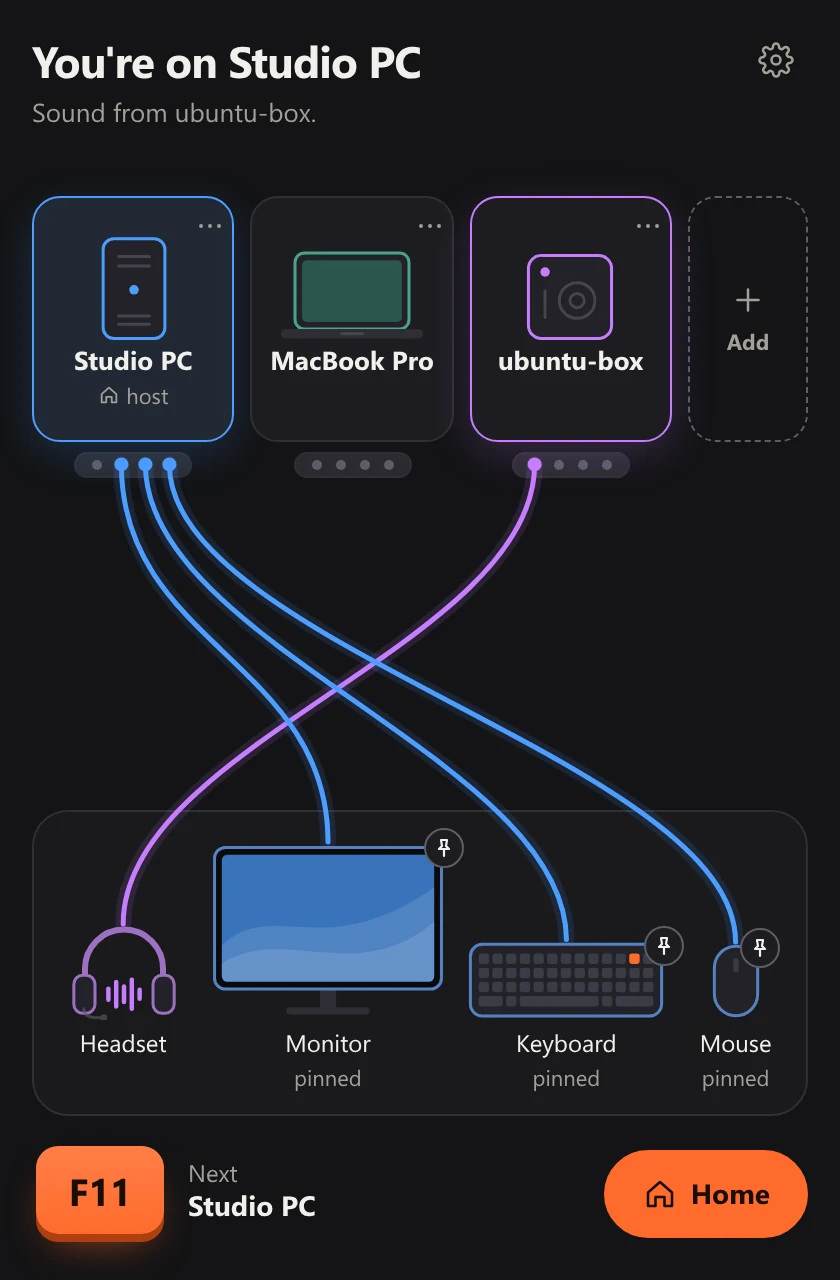
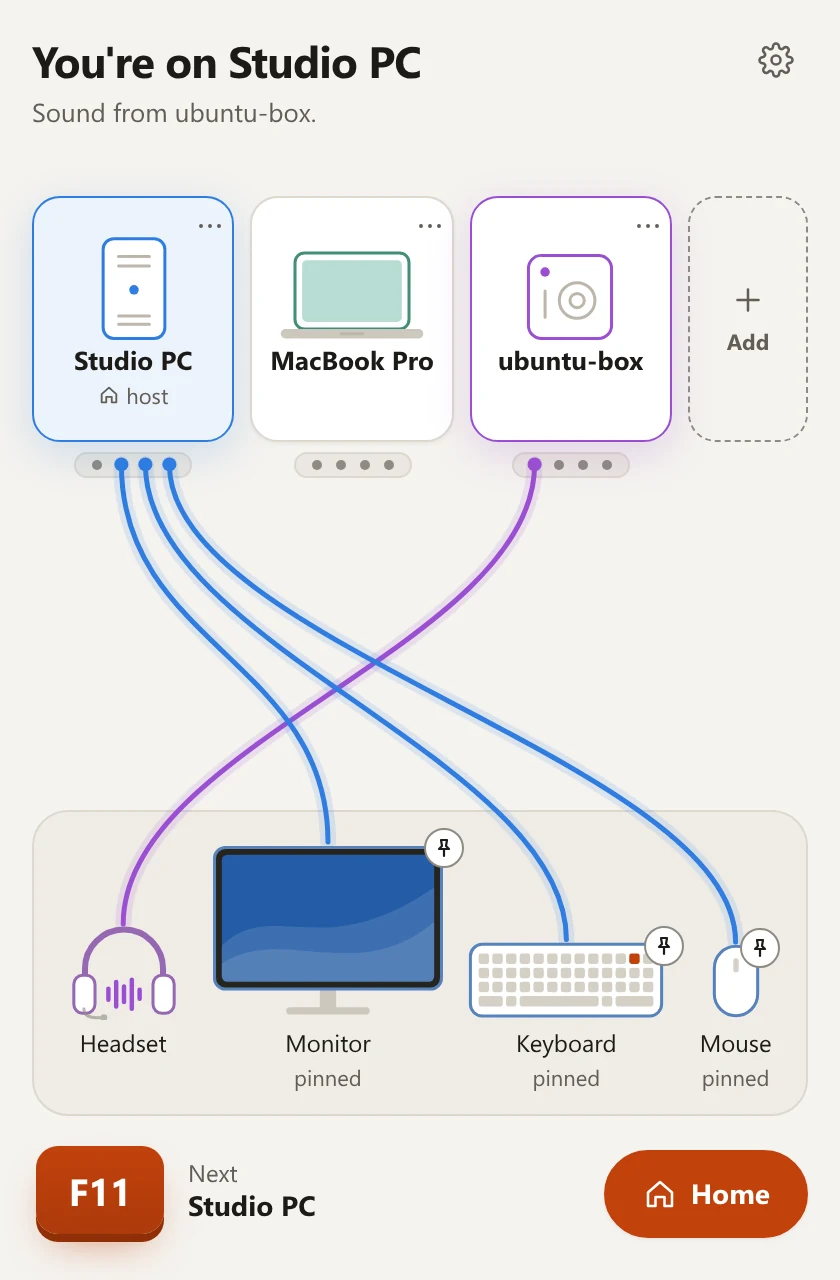
The Hotseat window. Title: You're on Studio PC, sound from ubuntu-box. A purple cable runs from the headset to ubuntu-box; blue cables run from the monitor, keyboard and mouse to Studio PC, each marked pinned.The Hotseat window. Title: You're on Studio PC, sound from ubuntu-box. A purple cable runs from the headset to ubuntu-box; blue cables run from the monitor, keyboard and mouse to Studio PC, each marked pinned.
The headset alone moved: its cable runs to ubuntu-box, while the monitor, keyboard and mouse stay pinned to the Studio PC.

4 of 7

Sound, and where you listen

The headset stays plugged into one computer and plays the sound of the one you are on.

You do
As a rule, nothing: sound goes with the keyboard. In Settings, Sound, you say which computer you listen on, the one your headset or speakers are plugged into. To hear another computer without moving the keyboard, click the headset in the window and pick it.
What happens
The computer you are on sends its sound across the network to the one you listen on, and it plays there. A Windows or Ubuntu computer that is sending its sound keeps its own speakers quiet meanwhile, and gives them back afterwards.
It needs
A headset or speakers on one of the computers. A Mac needs macOS 14.2 or newer and your permission to record system sound.
Limits
  • You hear one computer at a time, not a mix.
  • A Mac that sends its sound still plays it on its own speakers too.
  • The headset's microphone can go along to an Ubuntu computer, and to a Mac once Hotseat's microphone driver is installed there. It cannot go to a Windows computer.
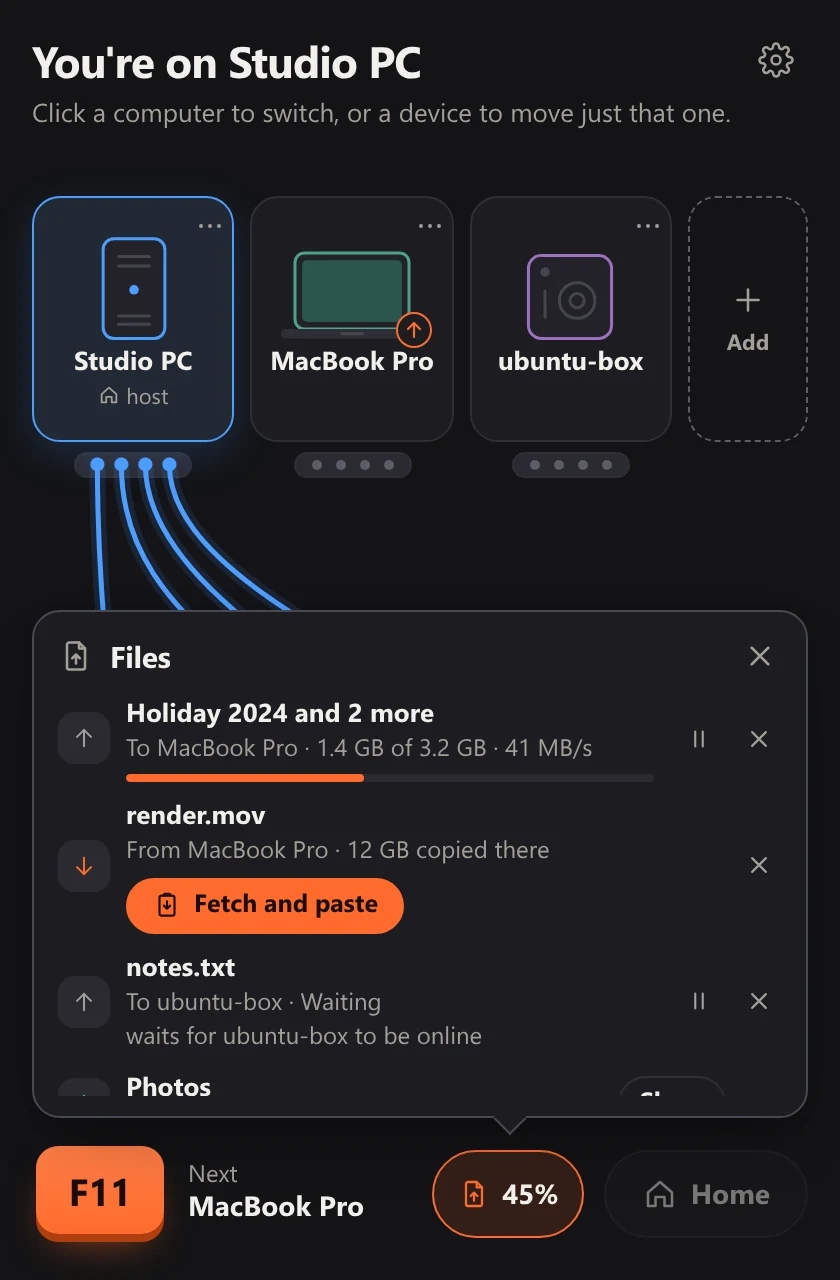
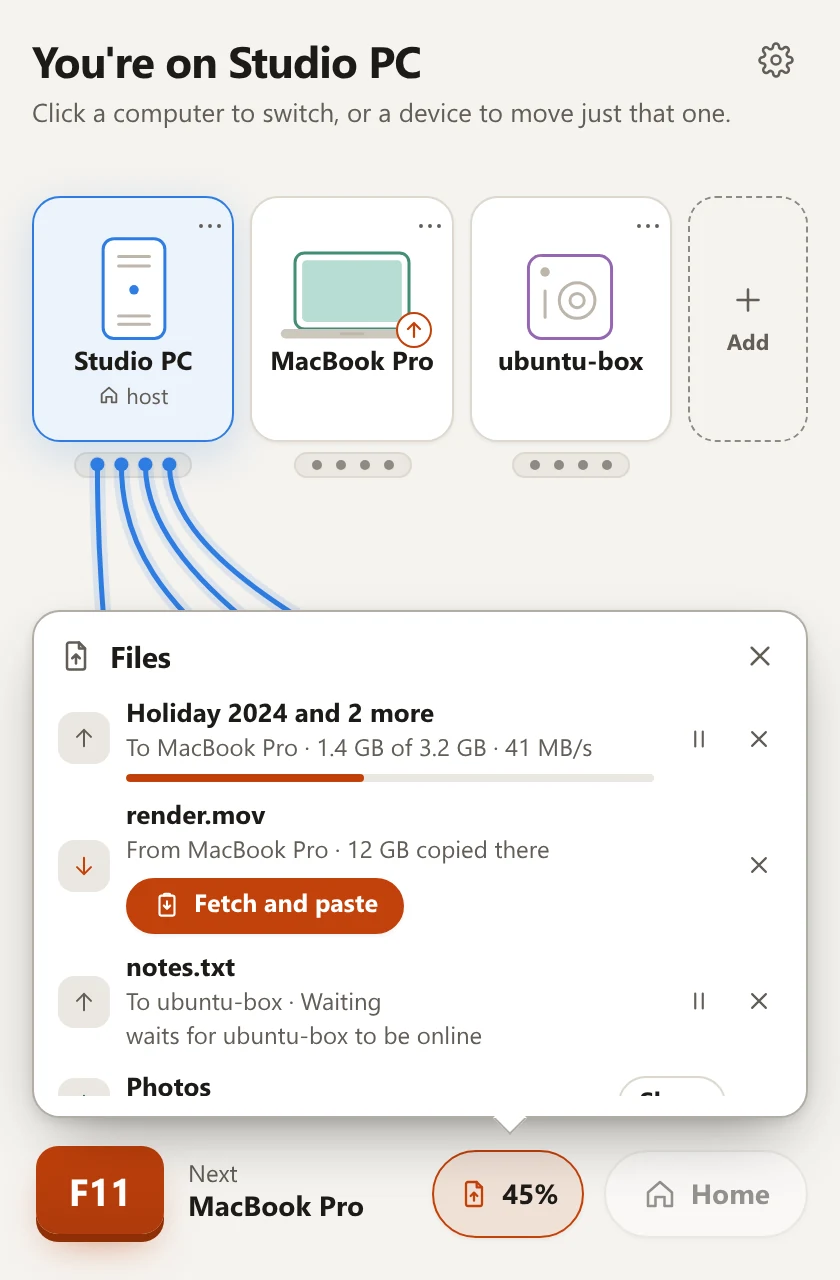
The Hotseat window with the Files card open. Holiday 2024 and 2 more, to MacBook Pro, 1.4 GB of 3.2 GB; render.mov from MacBook Pro, 12 GB copied there, with a button Fetch and paste; notes.txt to ubuntu-box, waiting for it to be online.The Hotseat window with the Files card open. Holiday 2024 and 2 more, to MacBook Pro, 1.4 GB of 3.2 GB; render.mov from MacBook Pro, 12 GB copied there, with a button Fetch and paste; notes.txt to ubuntu-box, waiting for it to be online.
Transfers in the window: one on its way to the MacBook Pro, one waiting on its clipboard to be fetched, one waiting for ubuntu-box to come online.

5 of 7

Clipboard and files

What you copied goes with you. Files and folders can be sent to another computer from the window.

You do
Copy, switch, paste. To send files, drop them on a computer in the Hotseat window, or choose Send files… or Send a folder… from its menu.
What happens
Copied text is on the other computer when you arrive, and what you copy there comes back with you. Sent files land in Downloads, in a Hotseat folder named after the computer they came from. Files copied in the file manager cross with the clipboard as well: up to 256 MB arrive by themselves, ready to paste.
It needs
Nothing more: files travel over the same link as everything else.
Limits
  • The clipboard carries text and files, not pictures. Text up to 1 MB.
  • It crosses when you switch, not all the time.
  • What a password manager put on the clipboard stays where it is.
  • Files are copied, never moved: the originals are not touched. Nothing is written over: a second file of the same name gets “(2)”.
  • A file appears only once it has arrived whole. If the link drops, the transfer waits and carries on from where it stopped.
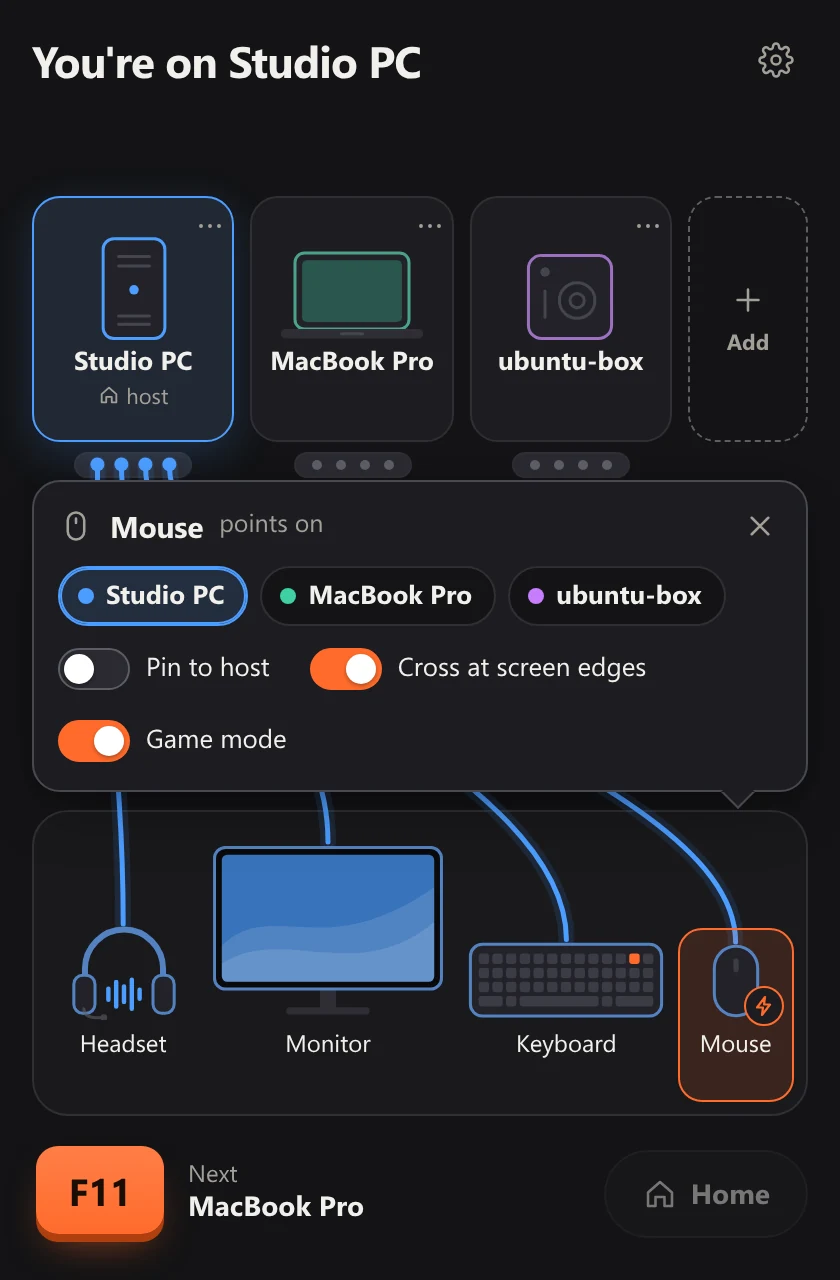
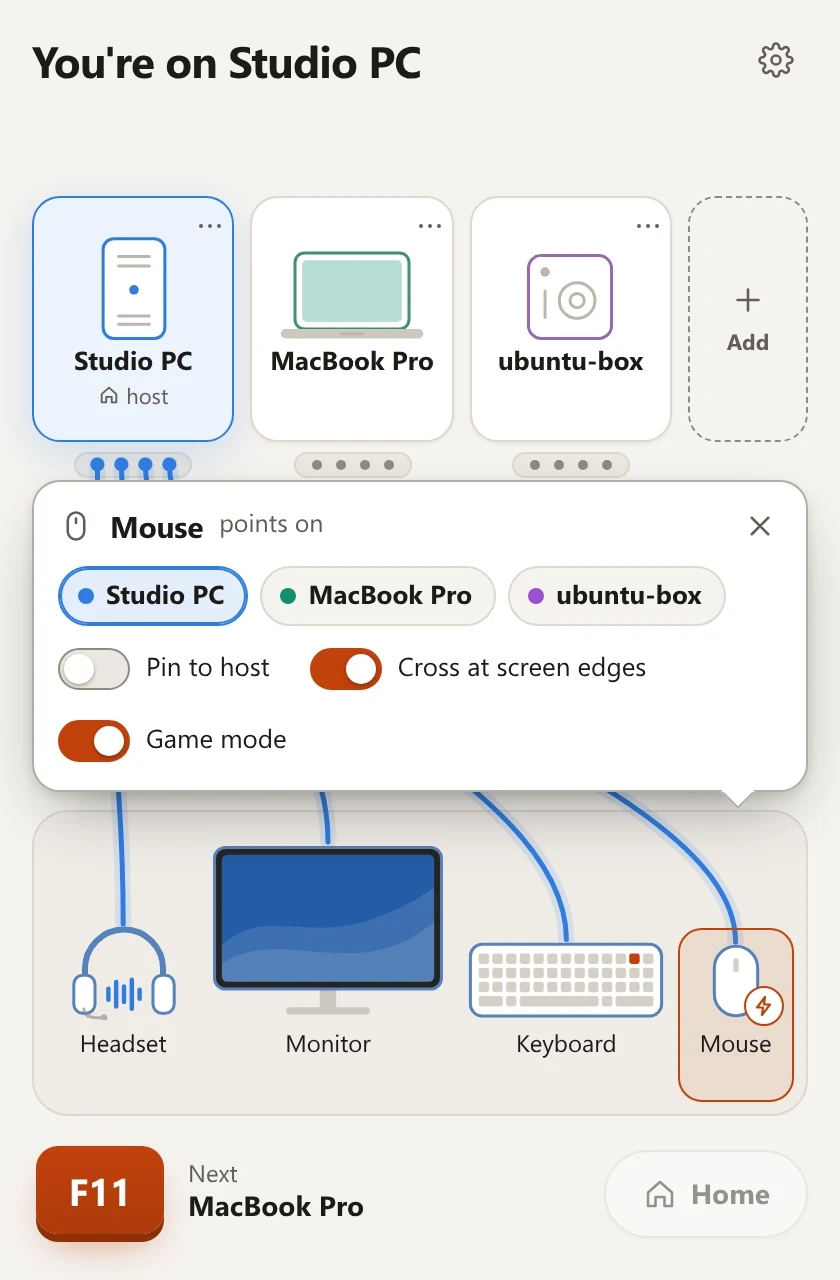
The Hotseat window with the mouse's card open: Mouse points on Studio PC; switches for Pin to host, off, Cross at screen edges, on, and Game mode, on.The Hotseat window with the mouse's card open: Mouse points on Studio PC; switches for Pin to host, off, Cross at screen edges, on, and Game mode, on.
A click on the mouse: where it points, a pin, crossing at screen edges, and Game mode.

6 of 7

Game mode

For playing on a computer other than the one your mouse is plugged into: the pointer is sent more often, and sound waits less before it plays.

You do
Click the mouse in the Hotseat window and turn on Game mode, on the computer your keyboard and headset are plugged into. It takes effect at once.
What happens
The pointer is sent up to 1,000 times a second, where it is usually sent up to 250, and the sound buffer starts at 20 ms, where it usually starts at 40. While you are on another computer, Hotseat measures the delay it adds itself, for the pointer and for sound, and shows it beside the switch.
It needs
A steady network between the two computers. When sound arrives unevenly, on Wi-Fi for example, the buffer grows back towards 40 ms by itself, and shrinks again when the network calms down.
Limits
  • The figures above are settings, not a measured result: the delay on a real desk has not been measured yet.
  • Hotseat can measure only its own part, between the two computers. The mouse itself, the game, the monitor and the headset's radio are outside what a program can see.
  • More packets cross the network while the mouse moves.
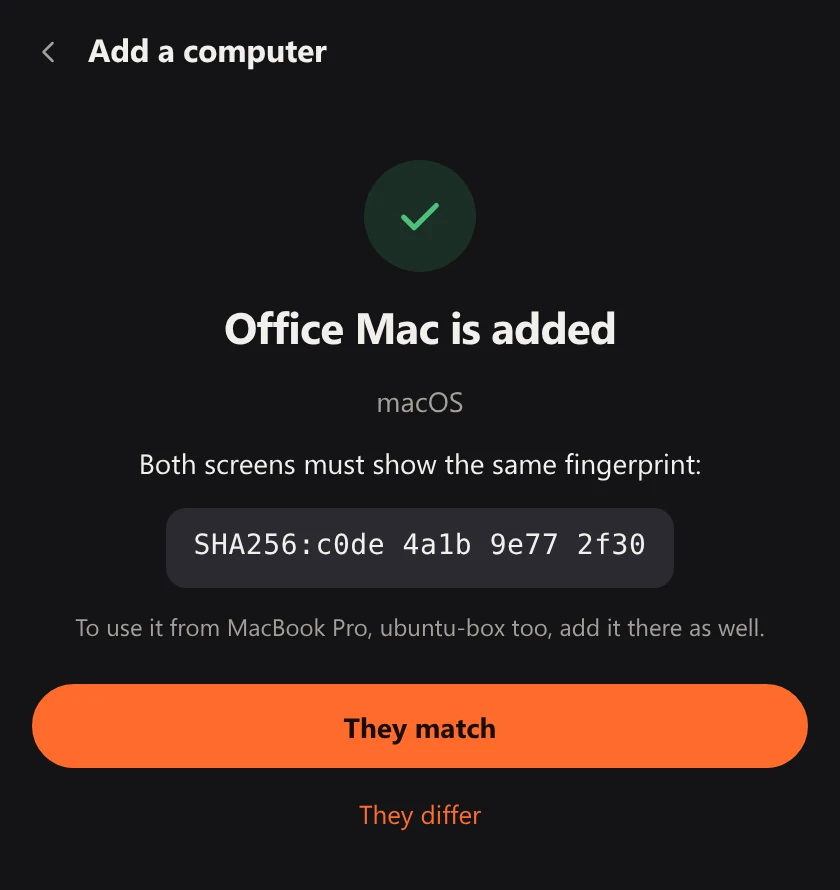
Hotseat, Add a computer: Office Mac is added. Both screens must show the same fingerprint, a short line of letters and digits. Two buttons: They match, and They differ.Hotseat, Add a computer: Office Mac is added. Both screens must show the same fingerprint, a short line of letters and digits. Two buttons: They match, and They differ.
After the code: both computers show the same fingerprint, and you say whether they match.

7 of 7

Pairing and safety

Two computers work together only after you have paired them yourself, with a code you read from one screen and type on the other.

Security and privacy in plain words

You do
On one computer choose Add a computer: it shows a six-digit code. Type it on the other. Both then show a fingerprint: check that the two are the same, and say so.
What happens
Each computer keeps the other's key. From then on they accept only each other, and everything between them is encrypted.
It needs
Both computers on the same local network. Every pair is paired once: with three computers, three times.
Limits
  • The code works for 10 minutes and for three tries.
  • Stop brings everything home at once: Ctrl+Alt+Win+Esc, with Command on a Mac or Super on Ubuntu in place of Win. Pressed on the computer that is being driven, it also keeps the other one out for a minute.
  • A paired computer is trusted with your keyboard, clipboard, files and sound. Pair only computers that are yours.

Where each part stands

Hotseat is young. This is what has been used on a real desk, and what has so far only passed its tests.

Each part of Hotseat and how far it has been checked
PartWhere it stands
Keyboard and mouse, by one keyIn useOn our own desk. Measured there: under 0.2 s for the keyboard and mouse to move.
The shared monitorIn useOn our own desk. Measured there: about 2.6 s with the monitor, which is the monitor's own time.
Screen edgesIn useOn our own desk, from a Windows PC to a Mac and to an Ubuntu PC. Not built yet: starting from an Ubuntu computer.
SoundAutomated testsBuilt, and passes its automated tests. Its full check on real sound hardware is still to come.
Clipboard and filesAutomated testsBuilt, and passes its automated tests on Windows, Ubuntu and macOS. Files have not yet had their check on a real desk.
Game modeAutomated testsBuilt, and passes its automated tests. Its delay on a real desk has not been measured yet.
macOSIn useOn our own desk, on a Mac with Apple silicon. There is no version for Intel Macs.

Four desks it was made for

$9.99 once, for all the computers on your desk

A lifetime licence with all updates.

Lifetime licence

$9.99

Pay once.

  • Every computer on your desk
  • A second desk, at home or at work
  • All updates
Get early access

Hotseat is not on sale yet. This button takes no payment and collects nothing.